You do not have to connect a bank account to keep bills organized on your iPhone. A manual system can still show what is due, when it repeats, which payments are automatic, and what needs attention before the deadline.
The best setup depends on how many bills you manage and what you want to see. Apple Reminders works for a short list. Calendar gives due dates a visual place in the month. A spreadsheet can hold more detail. A dedicated bill tracker brings recurring schedules, reminders, payment status, and calendar visibility together without requiring transaction access.
This guide was reviewed against current Apple support documentation on August 3, 2026. Apple features can change with future iOS releases, so check the linked documentation if a menu or label looks different on your device.
The quick answer
To track bills without linking a bank account, record six details for every recurring payment:
- Bill or provider name.
- Next due date.
- Repeat schedule, such as monthly, quarterly, or yearly.
- Expected amount, if useful.
- Whether the payment is automatic or manual.
- A reminder early enough to review or pay it.
Keep those details in one system and review the upcoming list once a week. That routine matters more than choosing the most complicated tool.
Why track bills without connecting your bank?
Bank-linked finance apps can identify recurring transactions automatically, but automation is not the only useful approach. Some people prefer not to share transaction access with another service. Others use several payment methods, manage household obligations that do not appear as normal bank transactions, or simply want a focused due-date system instead of a full budgeting platform.
Manual tracking gives you control over what enters the system. You can include rent, utilities, subscriptions, insurance renewals, school fees, property expenses, and bills paid from different accounts without importing unrelated purchases.
The trade-off is maintenance. A bank-linked service may notice a new recurring charge automatically. A private manual system depends on you adding the bill and updating it when the amount or due date changes. For many households, a short weekly review is a reasonable exchange for less account connectivity.
Option 1: Use Apple Reminders for a simple bill list
Apple Reminders is a practical starting point if you only manage a few predictable bills. Apple supports dated reminders, repeating schedules, early reminders, and widgets that can keep upcoming items visible from the Home Screen.
Create a dedicated list called Bills, then add one reminder for each payment. Put the provider and expected amount in the title or notes, set the due date, choose the correct repeat schedule, and add an early alert. Apple explains the current reminder features in its Reminders support guide.
A useful naming pattern is Provider — amount — payment method. For example, a reminder could identify the internet provider, the approximate monthly amount, and whether it is on autopay. Avoid storing full account or card numbers in the reminder.
Where Reminders works well
- You already use Reminders consistently.
- Your bills repeat on straightforward schedules.
- You mainly need alerts rather than payment history.
- You want a free solution built into iPhone.
Where Reminders becomes limiting
A task list is not designed specifically for bills. It may not give you a clean monthly total, a dedicated paid-versus-unpaid view, or an easy way to separate annual renewals from ordinary tasks. If your list becomes crowded with groceries, errands, and household chores, important payments can blend into everything else.
Option 2: Put due dates in Apple Calendar
Calendar is useful when you think visually and want to see how bills cluster around paydays or other commitments. You can create repeating events for due dates, or view scheduled reminders alongside calendar events. Apple documents the current integration in its guide to using reminders in Calendar on iPhone.
Create a separate Bills calendar so payment dates can be shown or hidden as a group. Use all-day events, repeat them at the correct frequency, and add one or two alerts. A larger annual renewal may deserve an alert a month ahead, while a routine monthly bill may only need a few days.
The main risk is calendar clutter. A busy household calendar can make bill events hard to distinguish from appointments and family activities. Calendar also does not naturally record whether a payment was completed unless you add your own convention.
Option 3: Use widgets for visibility, not as the whole system
Widgets can keep upcoming reminders visible without opening an app. Apple notes that widgets can appear on the Home Screen or Lock Screen and can show current information at a glance. Its iPhone widget guide explains how to add and edit them.
A widget is most useful as the front door to a system you already trust. It should surface the next few bills, not become a second place where you maintain dates. If you use Reminders, display the dedicated Bills list. If you use a bill tracker with widgets, select the view that shows upcoming obligations.
Do not assume visibility equals completion. A bill can sit on the Home Screen for days and still be missed. Pair the widget with an alert and a weekly review.
Option 4: Keep a spreadsheet or note
A spreadsheet can store provider names, due dates, frequencies, amounts, autopay status, and notes in a compact table. It works well as a complete household inventory and can be useful when you want to review several months at once.
The weakness is follow-through. A spreadsheet does not automatically become part of your daily routine, and a note usually does not alert you before a deadline. You may end up maintaining one file and separately creating reminders in another app.
If you already have a spreadsheet, our spreadsheet alternative guide explains when a dedicated reminder system becomes easier to maintain.
Option 5: Use a dedicated bill tracker
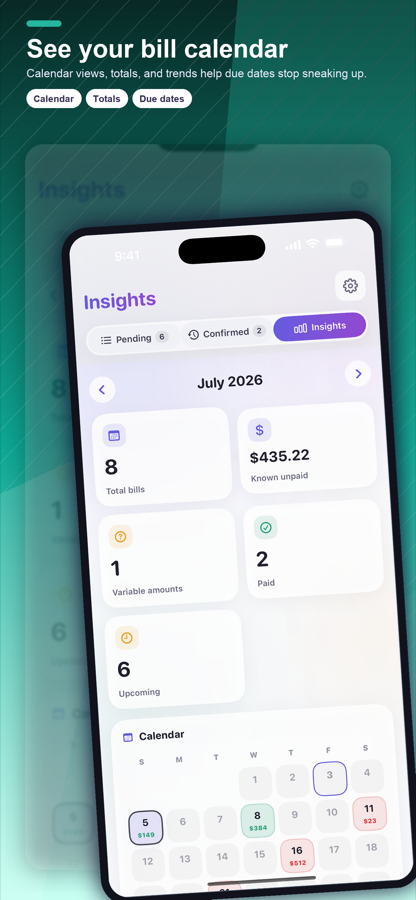
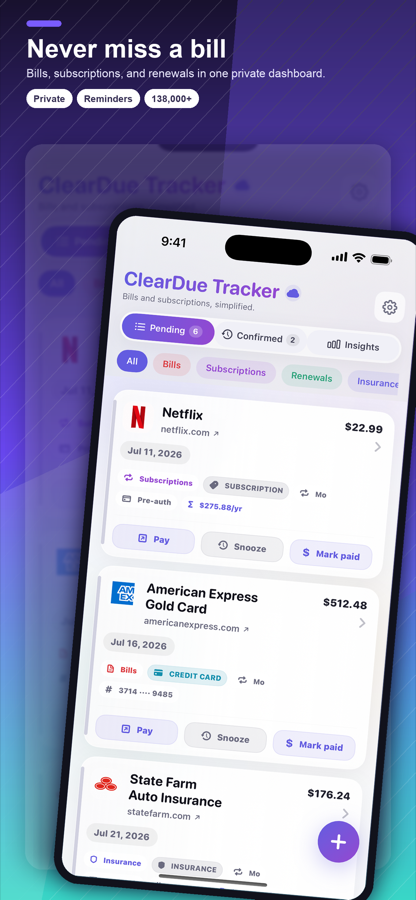
A dedicated tracker is useful when Reminders feels too general but a bank-linked finance platform feels too broad. Look for recurring schedules, flexible alerts, a calendar or upcoming view, clear payment status, widgets, and a privacy model you understand.
ClearDue publishes this guide and makes ClearDue Tracker, so our relationship should be explicit. The app is designed for iPhone users who want to enter recurring bills and subscriptions directly, see upcoming due dates, receive reminders, and optionally use iCloud sync. It does not require a bank connection. You can review the current feature set on the ClearDue Tracker App Store page or read our bill tracker app guide.
A dedicated app still needs accurate entries. It cannot know that a provider changed your billing date unless you update the record. The benefit is that recurring-payment details live in a purpose-built view instead of being mixed with unrelated tasks.
Set up a private bill system in 15 minutes
1. Build a complete inventory
Review recent statements, email receipts, App Store subscriptions, and paper bills. You are looking for obligations, not importing data. Write down monthly utilities, housing, insurance, credit cards, memberships, software, cloud storage, and annual renewals.
2. Choose one source of truth
Pick Reminders, Calendar, a spreadsheet, or a dedicated tracker as the place where the correct due date lives. Other tools can display or support the information, but avoid maintaining competing master lists.
3. Add repeat schedules carefully
Monthly is not the only pattern. Include quarterly, semiannual, yearly, and custom renewals. Check the next actual due date before setting the repeat rule so an old date does not reproduce forever.
4. Give important bills more lead time
A small automatic subscription may need a short reminder. Insurance, property expenses, or an annual membership may need several weeks so you can review the price and decide what to do.
5. Keep autopay visible
Autopay reduces manual work, but it does not remove the need for awareness. Cards expire, balances change, prices increase, and unwanted services renew. Mark an item as automatic while keeping it in the upcoming view.
6. Review once a week
Choose a repeatable moment, such as Sunday evening or payday. Confirm what is due next, mark completed payments, and update anything that changed. A five-minute review keeps a manual system trustworthy.
Privacy questions to ask before choosing an app
- Does the app require a bank or card connection?
- Can it be used without creating an account?
- Where is bill data stored?
- Is cloud sync optional, and which service provides it?
- Can you delete or export your information?
- What information appears in notifications and widgets?
- Does the current App Store privacy label match your expectations?
Privacy is not only about storage. Consider what may appear on a locked screen, a shared device, or a family calendar. Use neutral notification wording if other people can see your phone, and avoid placing sensitive account details in bill names or notes.
Which option should you choose?
Use Apple Reminders if your list is short and alerts are the main requirement. Use Calendar if seeing due dates in the month matters most. Keep a spreadsheet if you need a detailed inventory and are willing to maintain reminders separately. Choose a dedicated tracker if you want recurring-payment views, status, reminders, and widgets in one focused place.
If you are comparing several types of apps, see our guide to bill tracking options. The right answer is the lightest system that still gives you confidence about what is due next.
Common mistakes to avoid
- Tracking monthly bills but forgetting annual renewals.
- Removing autopay items from view.
- Setting every reminder on the due date instead of before it.
- Maintaining different due dates in several apps.
- Adding account numbers or sensitive details that are not needed.
- Failing to review the system after moving, changing providers, or replacing a card.
A private manual system succeeds when it is simple enough to keep current. Start with the bills that matter most, add the less frequent renewals, and make the weekly review part of your normal routine.
Frequently asked questions
Can I track bills on iPhone without giving an app bank access?
Yes. You can enter due dates manually in Reminders, Calendar, a spreadsheet, or a dedicated bill tracker. Manual entry requires maintenance but does not depend on transaction access.
Is Apple Reminders enough for monthly bills?
It can be enough for a short, predictable list. A dedicated tracker becomes more useful when you want a bill-specific calendar, payment status, annual renewal visibility, or a cleaner separation from everyday tasks.
Should bills on autopay still have reminders?
Usually, yes. A reminder helps you check the expected amount, available balance, payment method, and whether the service is still wanted before the charge occurs.